
Use your email code
- Open Client sign-in and enter your email address.
- Check your inbox and spam folder. Enter the newest six-digit code in the browser where you requested it.
- Complete any required profile or authenticator step.
 Enlarge
A code expires after ten minutes and can be used once. After verification, your account session lasts up to 48 hours.
Need a hand?
Use only the newest code in the requesting browser. Sign in again after signing out, session expiry or access revocation. Security changes may require fresh verification. Repeated requests or incorrect attempts can temporarily limit sign-in.
Complete your first sign-in
- After verification, supply any missing first name, last name and telephone number.
- Confirm the form to enter your account.
- Review your communication language in Profile.
Your first successful sign-in initializes your communication language from the website language.
Add authenticator verification
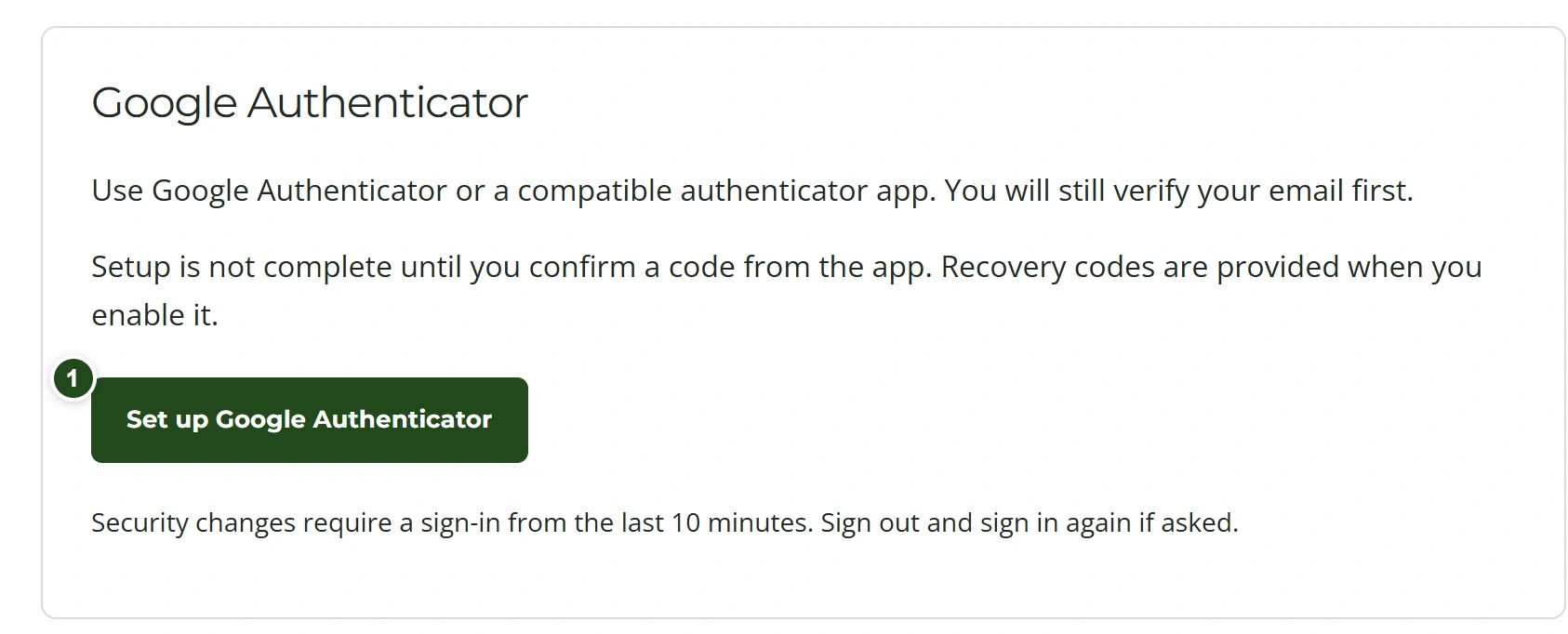
- While signed in, open Security and start authenticator setup.
- Scan the QR code with Google Authenticator or a compatible app, or enter the setup key.
- Enter a current app code to enable the extra step, then store the recovery codes securely.
 Enlarge
Future sign-ins require the email code followed by an authenticator code. Email verification alone does not bypass this step.
Use a recovery code
- Complete email verification first.
- If your authenticator is unavailable, use the recovery-code option and enter an unused recovery code.
- Once signed in, open Security to review your authenticator settings.
Each recovery code works only once. Security changes may require recent verification.
Need a hand?
If you have neither the app nor an unused recovery code, contact the firm. Do not send codes or setup keys in a message.
Staff sign-in
- Open the administration sign-in page and enter the email registered for your staff access.
- Enter the newest email code in the same browser.
- If you already verified a client account linked to your staff access, use Administration in the website navigation.
The staff workspace shows the tools permitted for your account.
Need a hand?
If access is unavailable, ask an access manager to check your account.