
Understand appointment status
- Sign in and open Appointments in My account.
- Select the appointment you want to review.
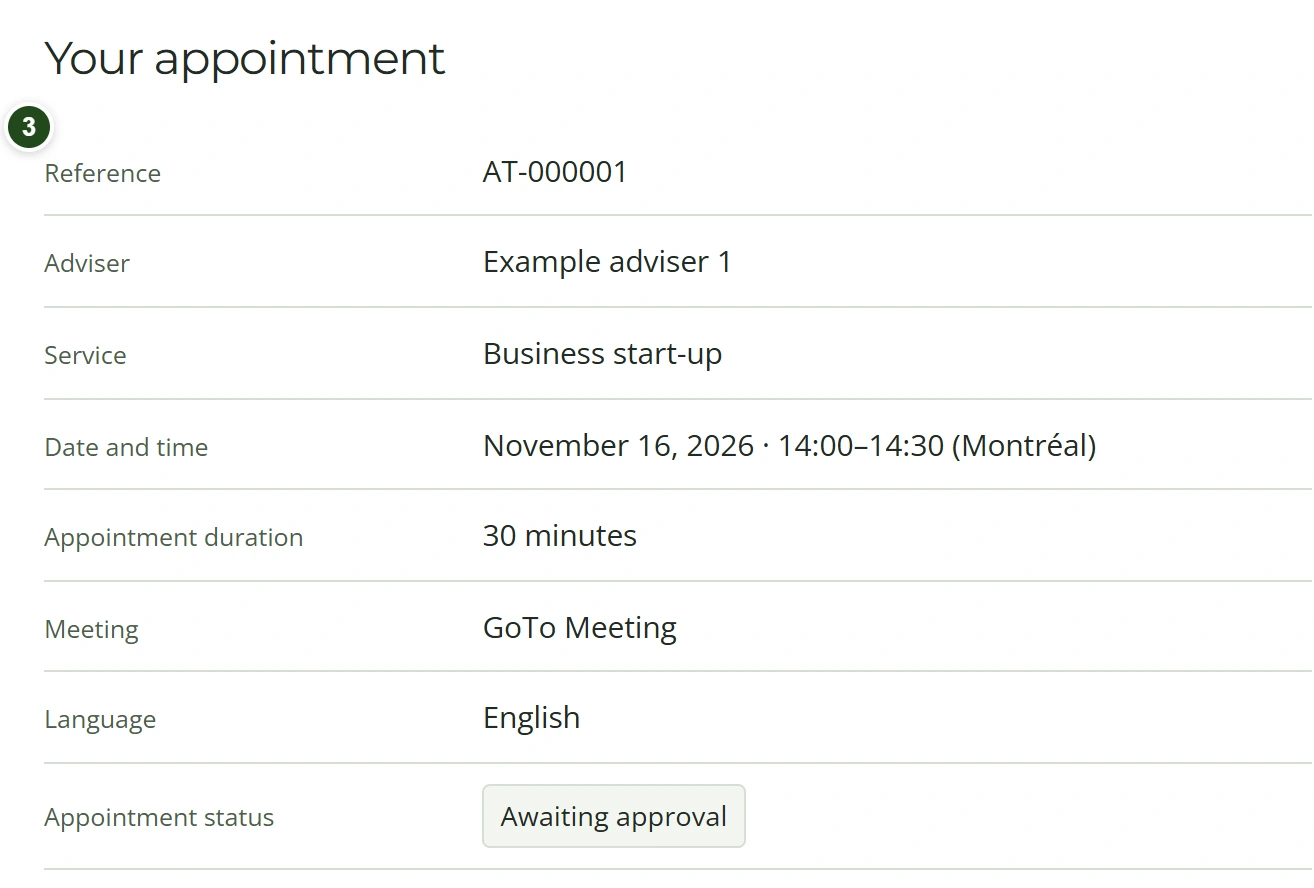
- Read its status and verify its adviser, services, date and time.
 Enlarge
Awaiting approval means the request is received but not yet confirmed. Confirmed means an authorized staff member has approved it.
Find your GoTo meeting link
- Wait for your appointment to be approved.
- Look for the meeting-link email, or open the confirmed appointment in My account.
- Use Join GoTo Meeting when the link is available.
Meeting access is shown once the connection has completed; it is separate from the initial approval message.
Need a hand?
If a confirmed appointment has no link, contact the firm. Cancelled appointments cannot be joined.
Reschedule or cancel
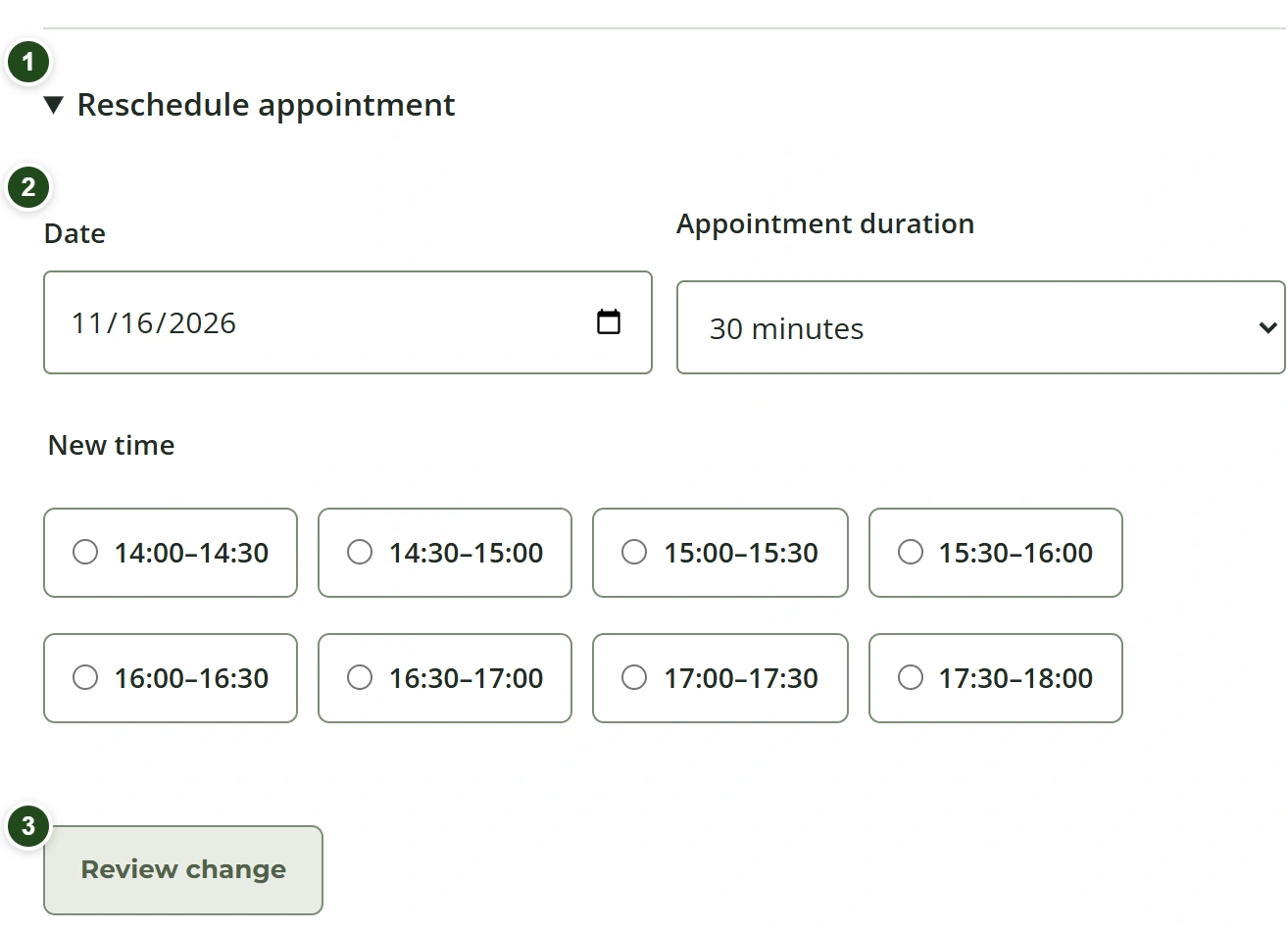
- Open your appointment and expand Reschedule appointment, or choose Cancel appointment.
- For rescheduling, choose a date, duration and New time, then select Review change.
- Review the details and choose Confirm change. Leaving without confirming keeps the current appointment.
 Enlarge
Leaving the review without confirmation keeps the existing appointment. Confirmed changes appear in your account.
Need a hand?
Changes are available before the appointment starts. If the action is unavailable, contact the firm.
Review reminder preferences
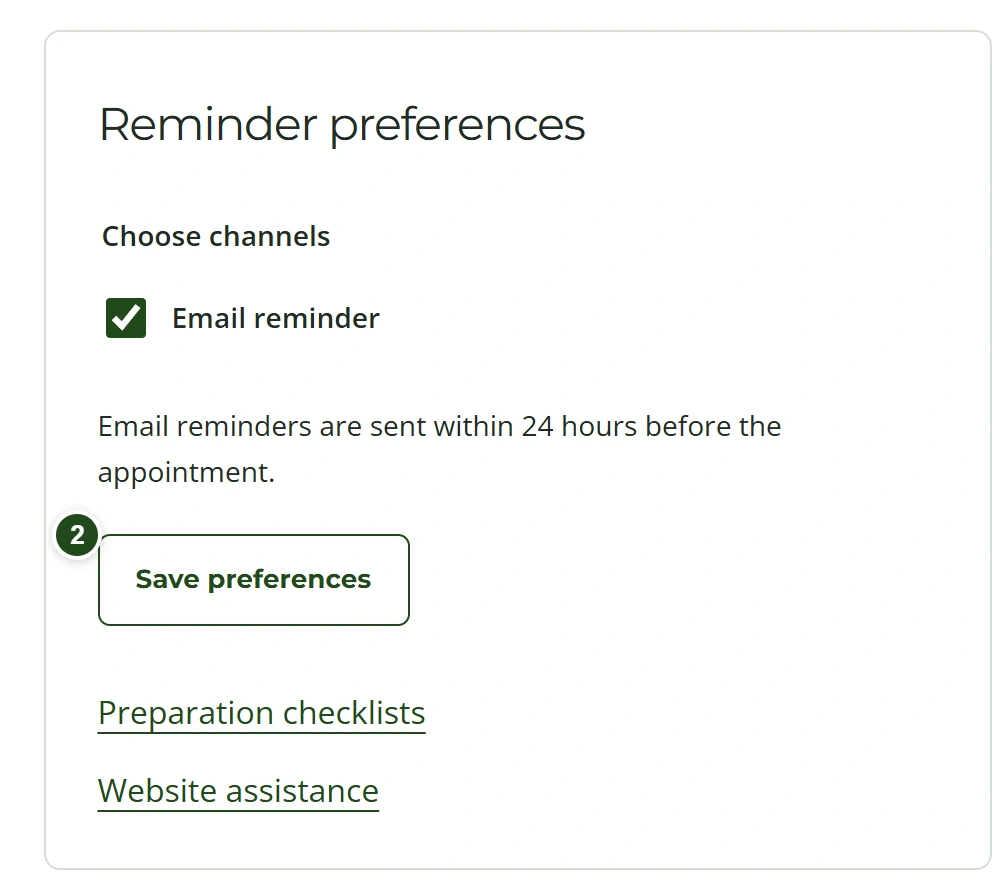
- Open the appointment’s reminder preferences.
- Choose the preferences offered and save them.
- Check Messages for available appointment communications.
 Enlarge
Email is the delivery channel currently connected. An SMS preference or preview does not mean a text message will be sent.